Made by Kristin Hayes with Scribe
Learn how to navigate PCO Workflows, search for specific workflows, and add notes. This guide also covers assigning tasks, completing steps, and adding new people to your workflows for efficient project management.
Reviewing and editing workflow cards
1. Navigate to https://people.planningcenteronline.com/
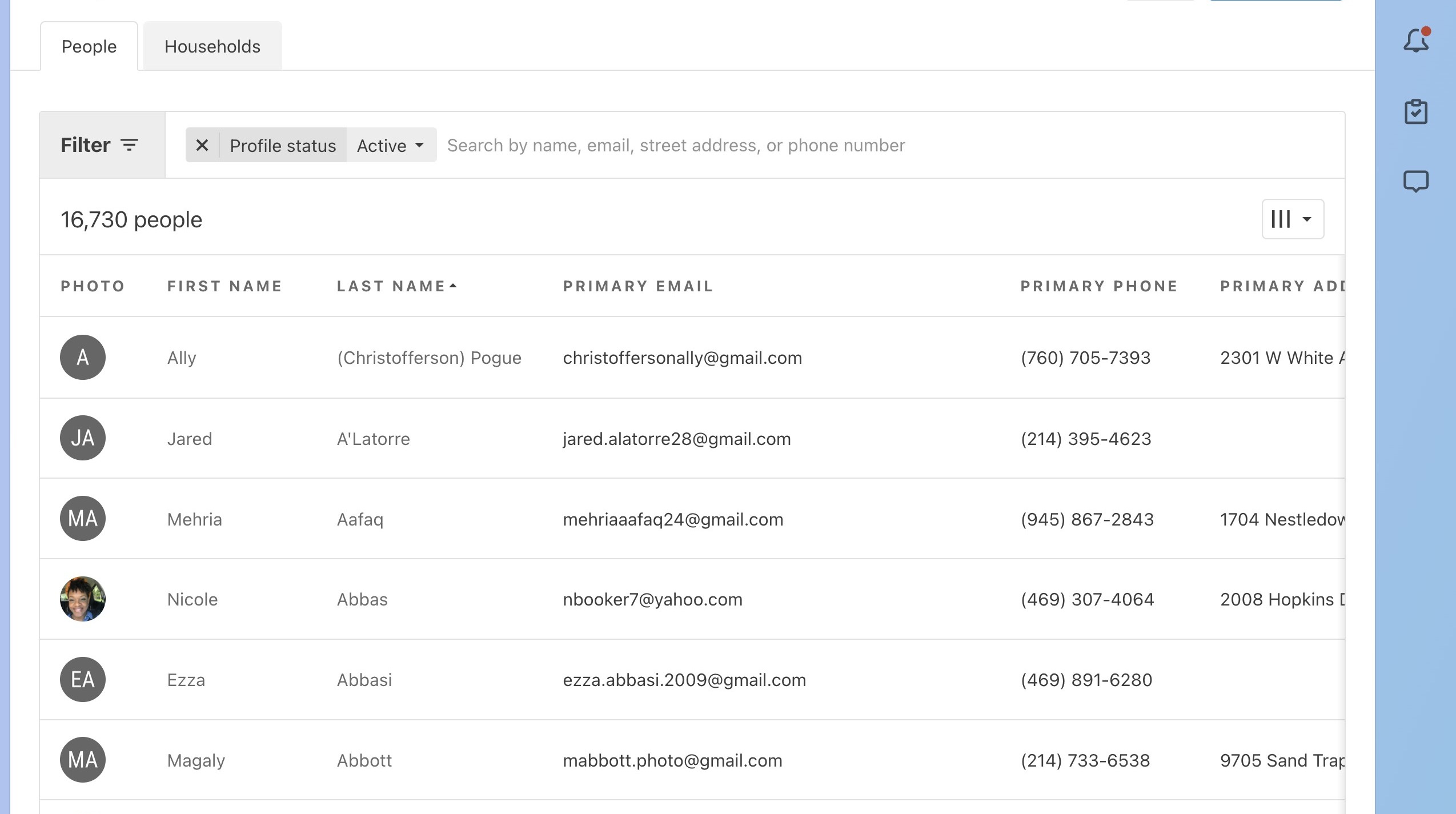
2. Click "Workflows"
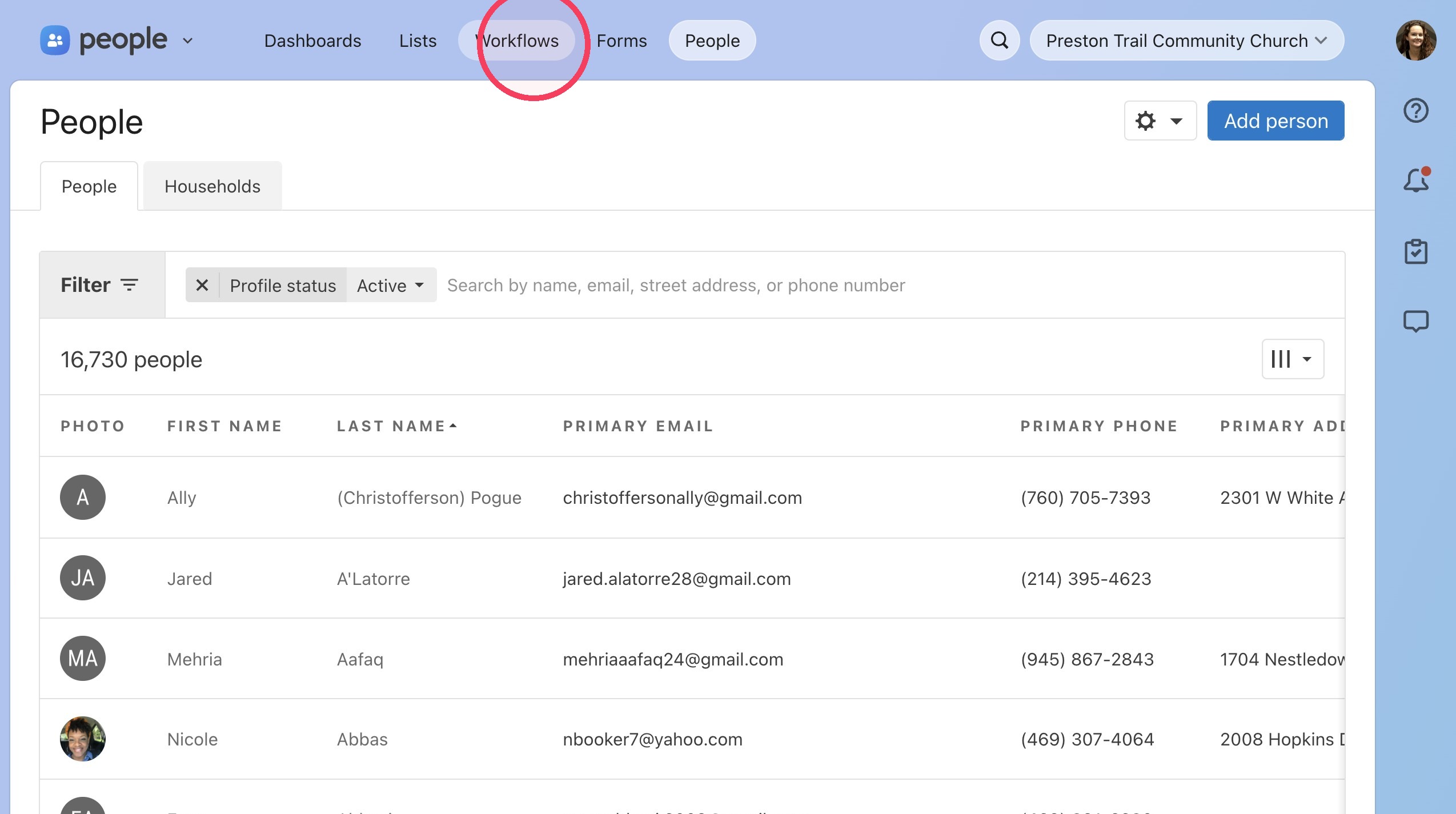
3. Click the "Find a workflow" field.
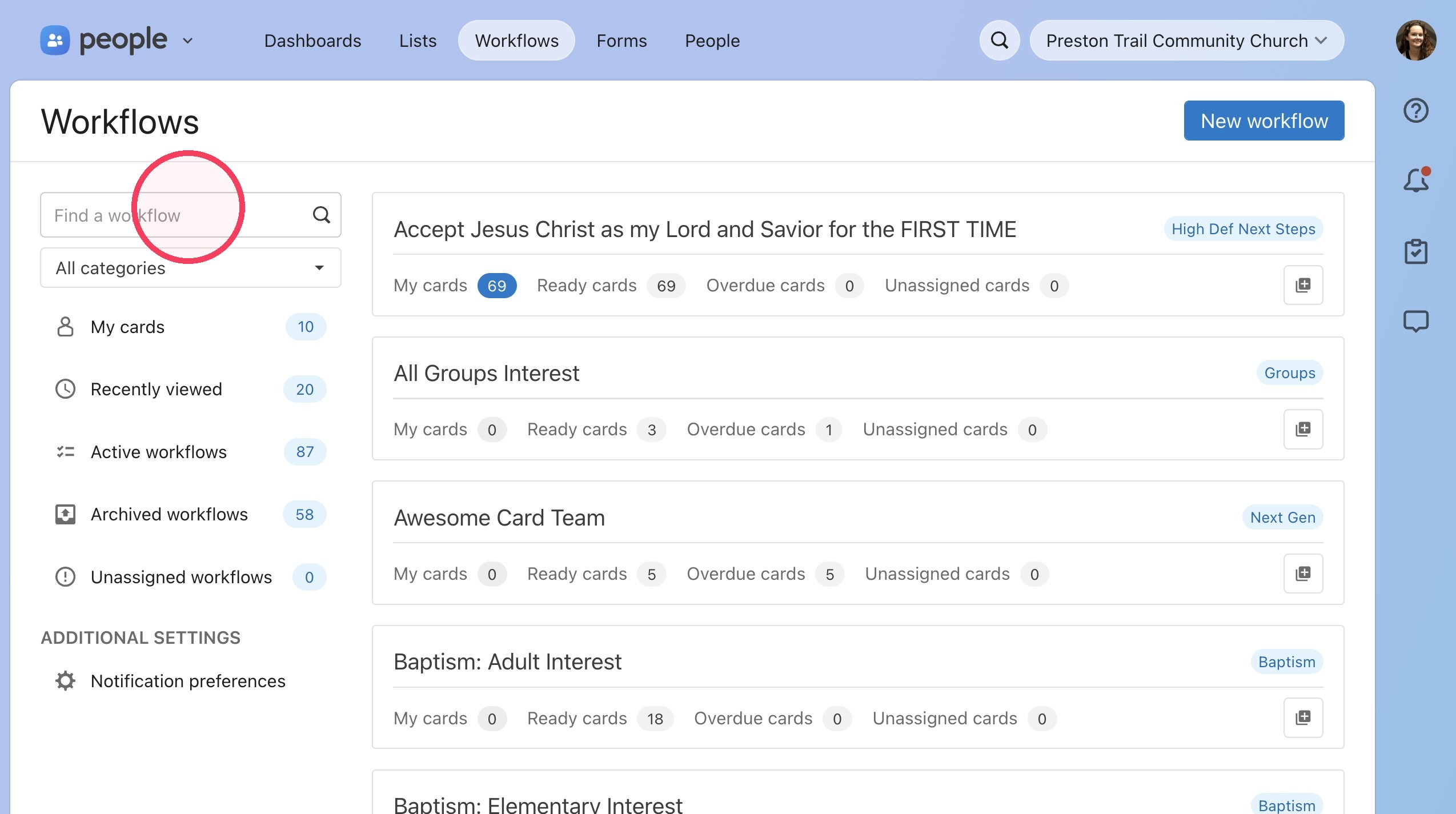
4. Type "prayer"
5. Click "Prayer Intake"
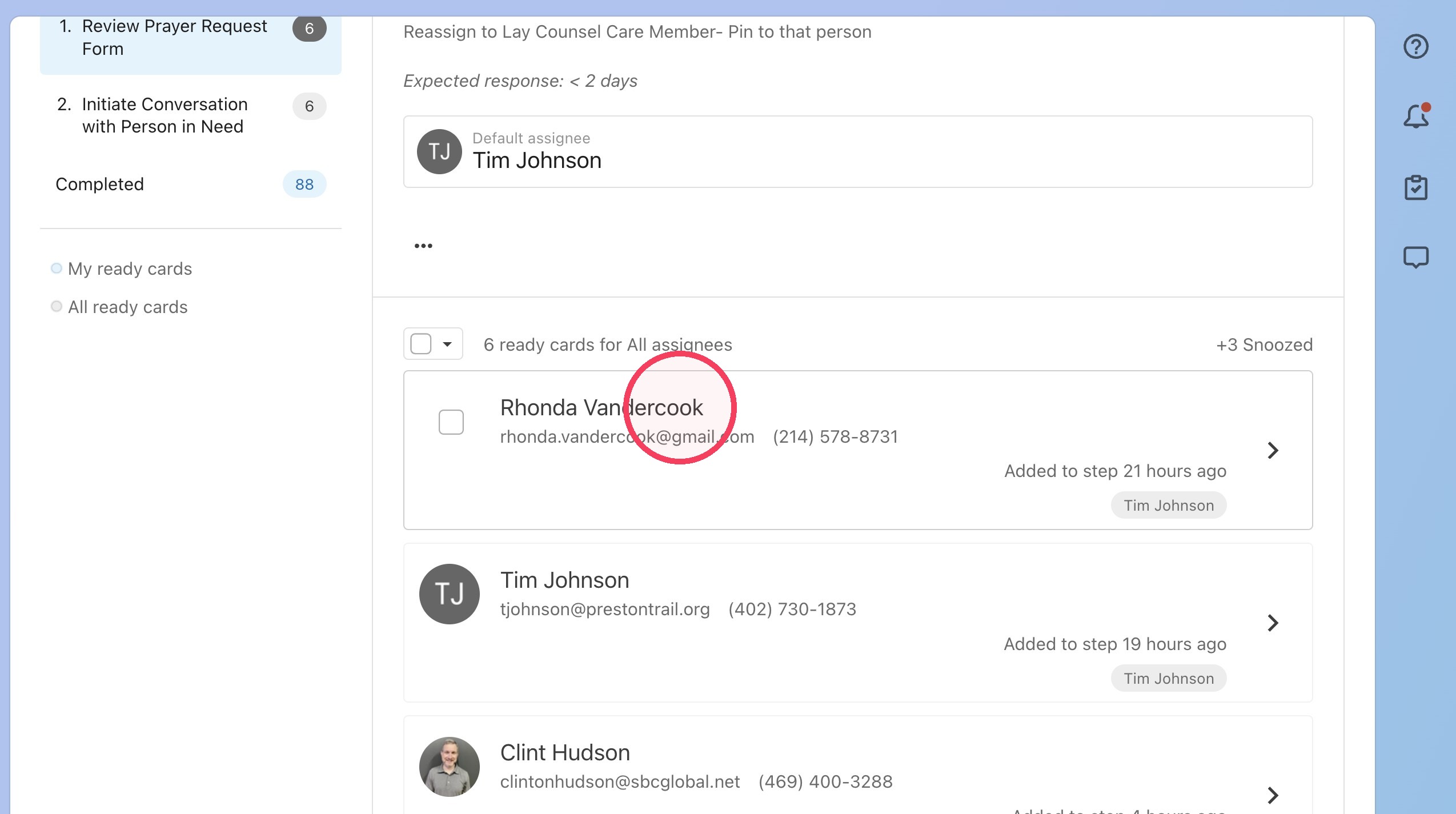
6. Click on card you want to manage. You may need to filter assignee to find your card.
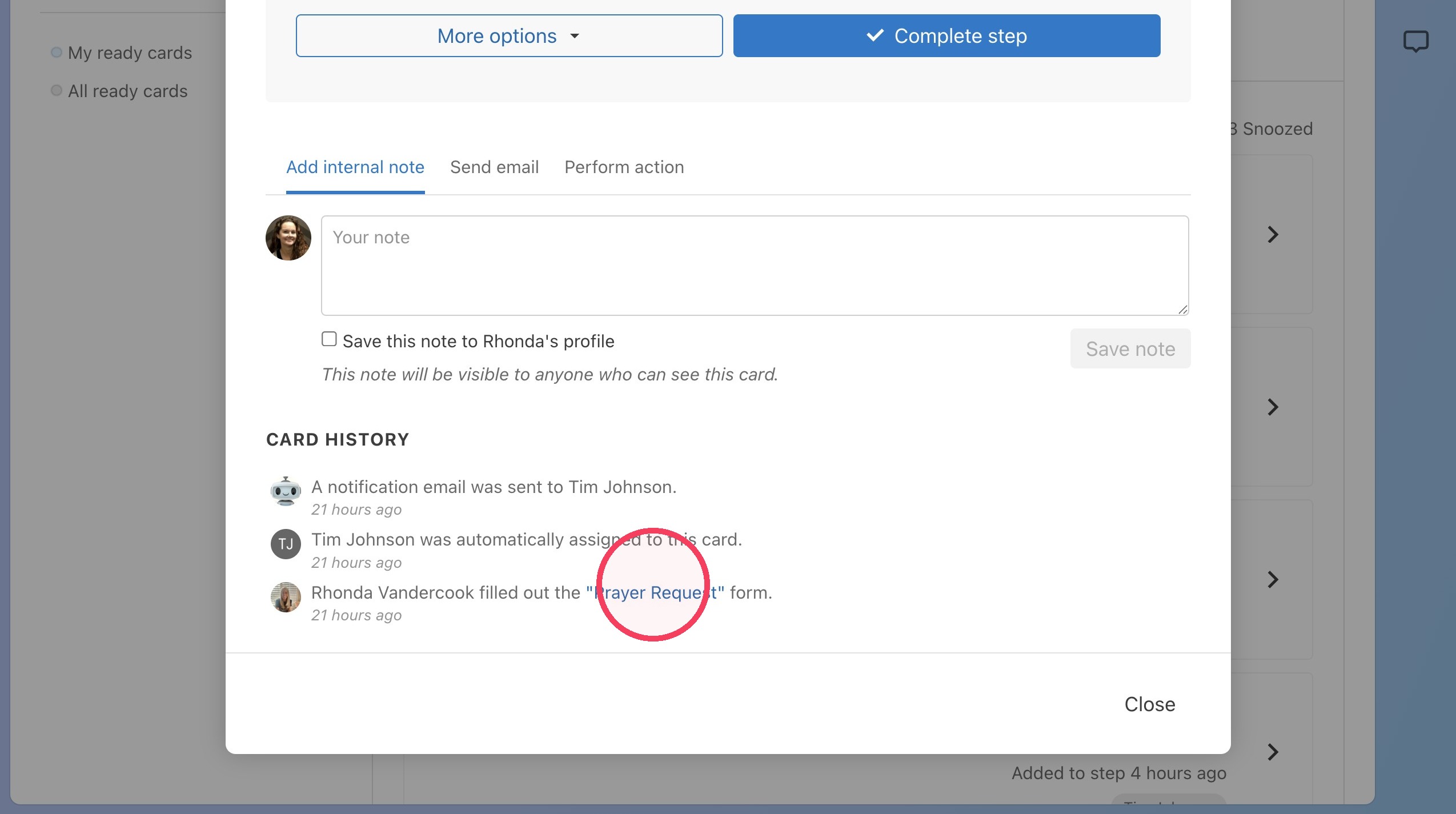
7. If the request was submitted via the prayer request form, click "Prayer Request" to view the form submission.
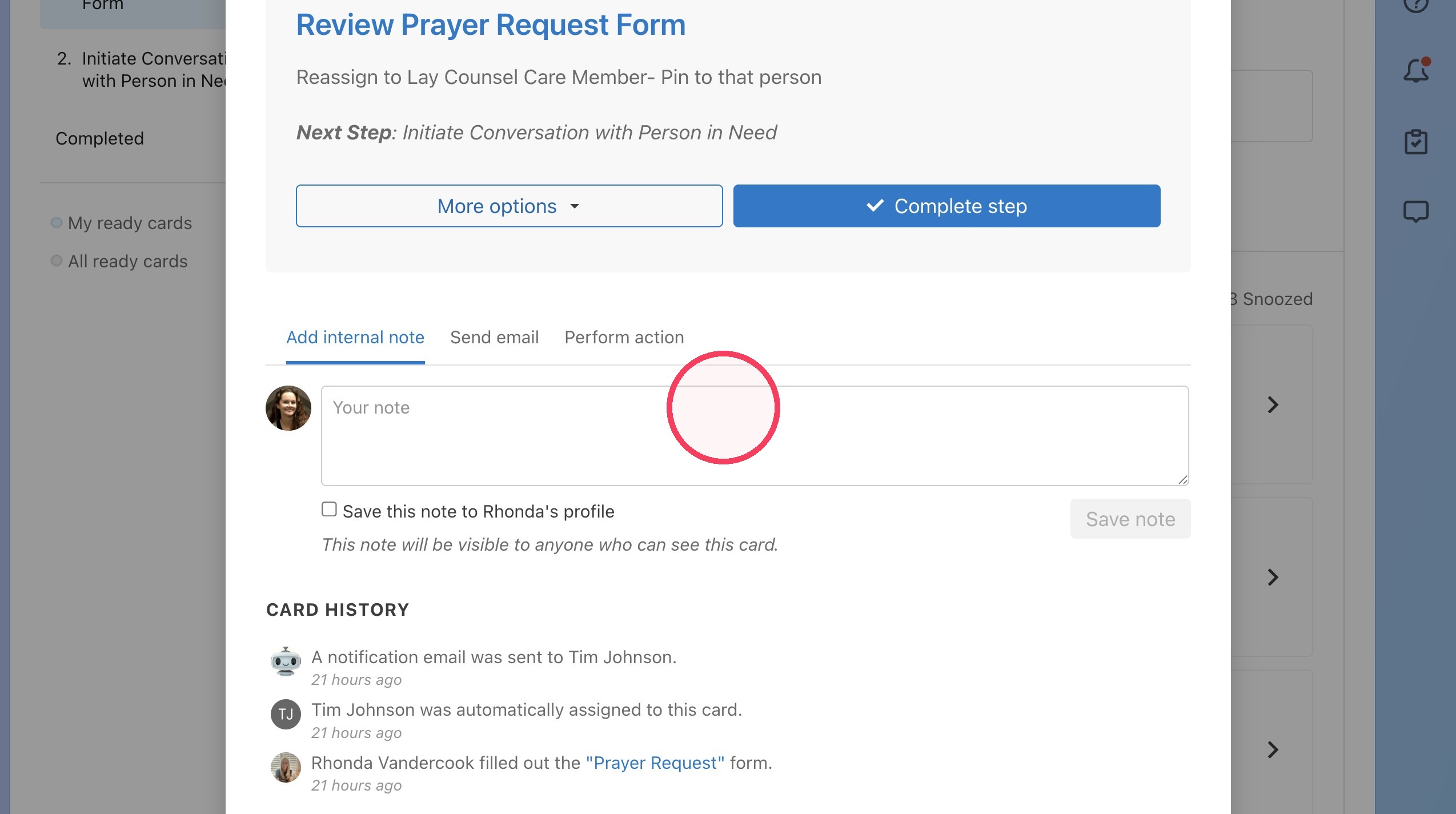
8. To add a note to the card, click the "Your note" field and type your note.
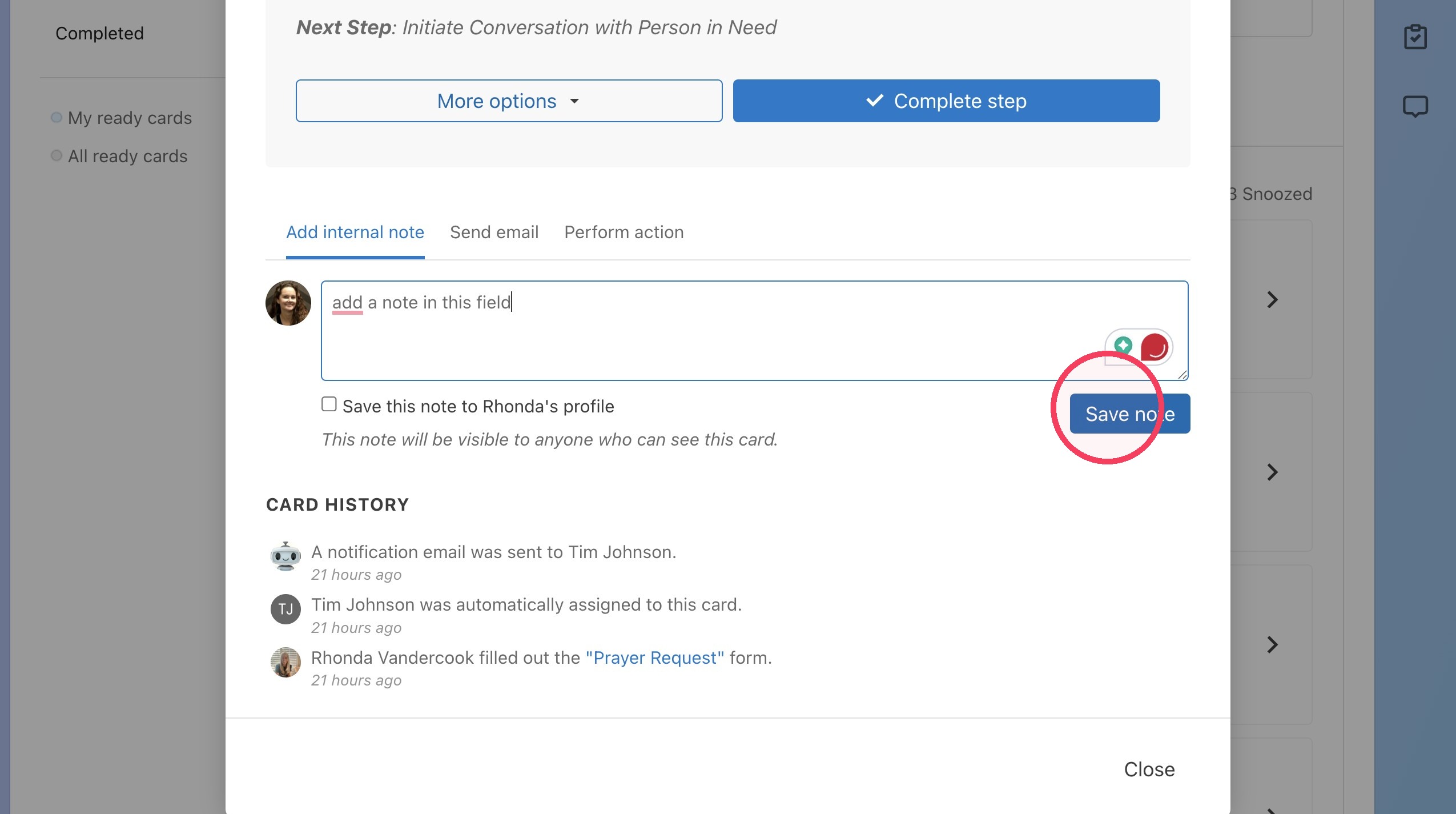
9. Click "Save note"
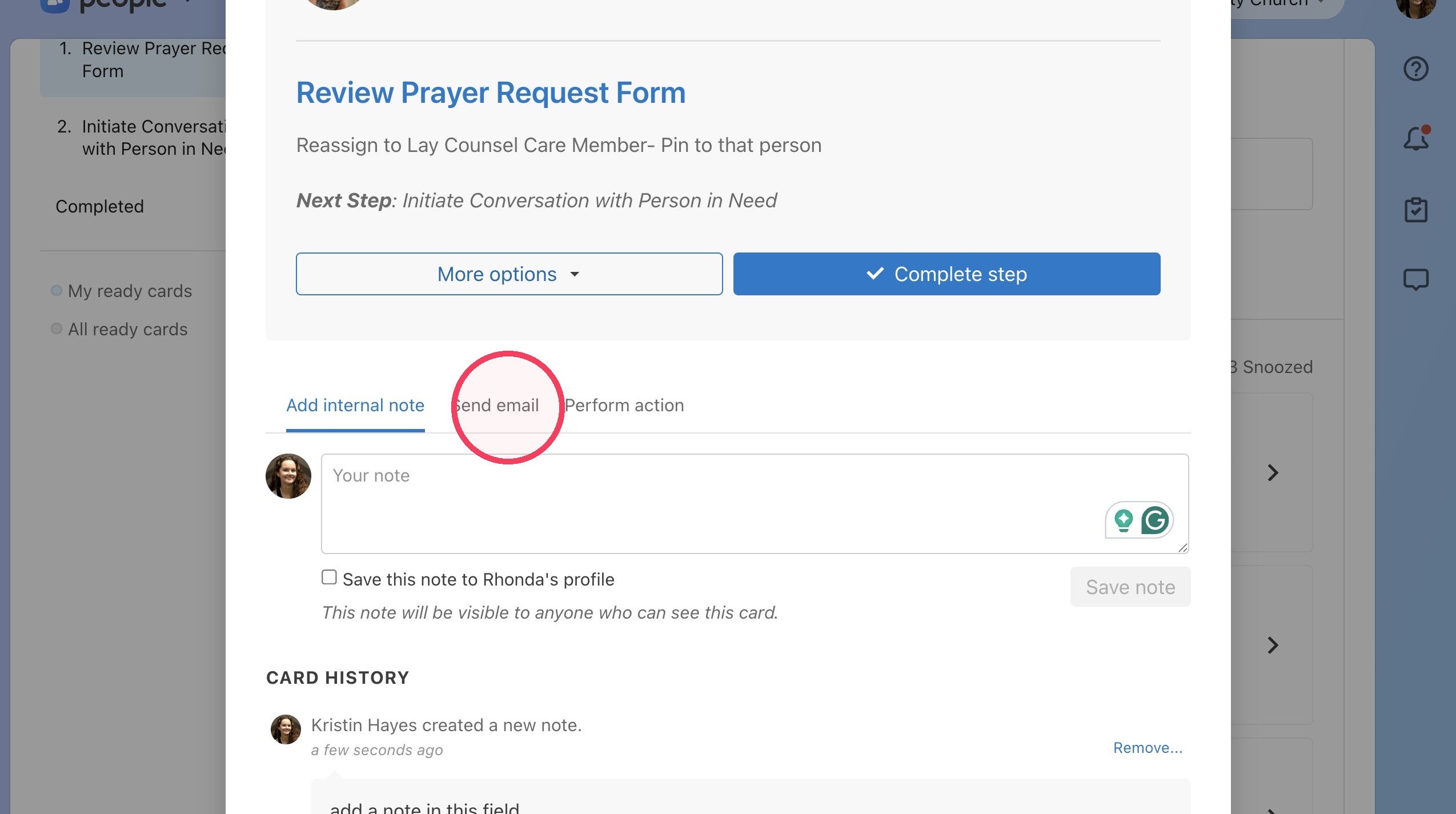
10. To send an email to the person the card was created for, click "Send email." Type your email content and hit "send email"\
***If the card was created by a member of the prayer team submitting the form and not by the person needing prayer, the email will go to the prayer team member.
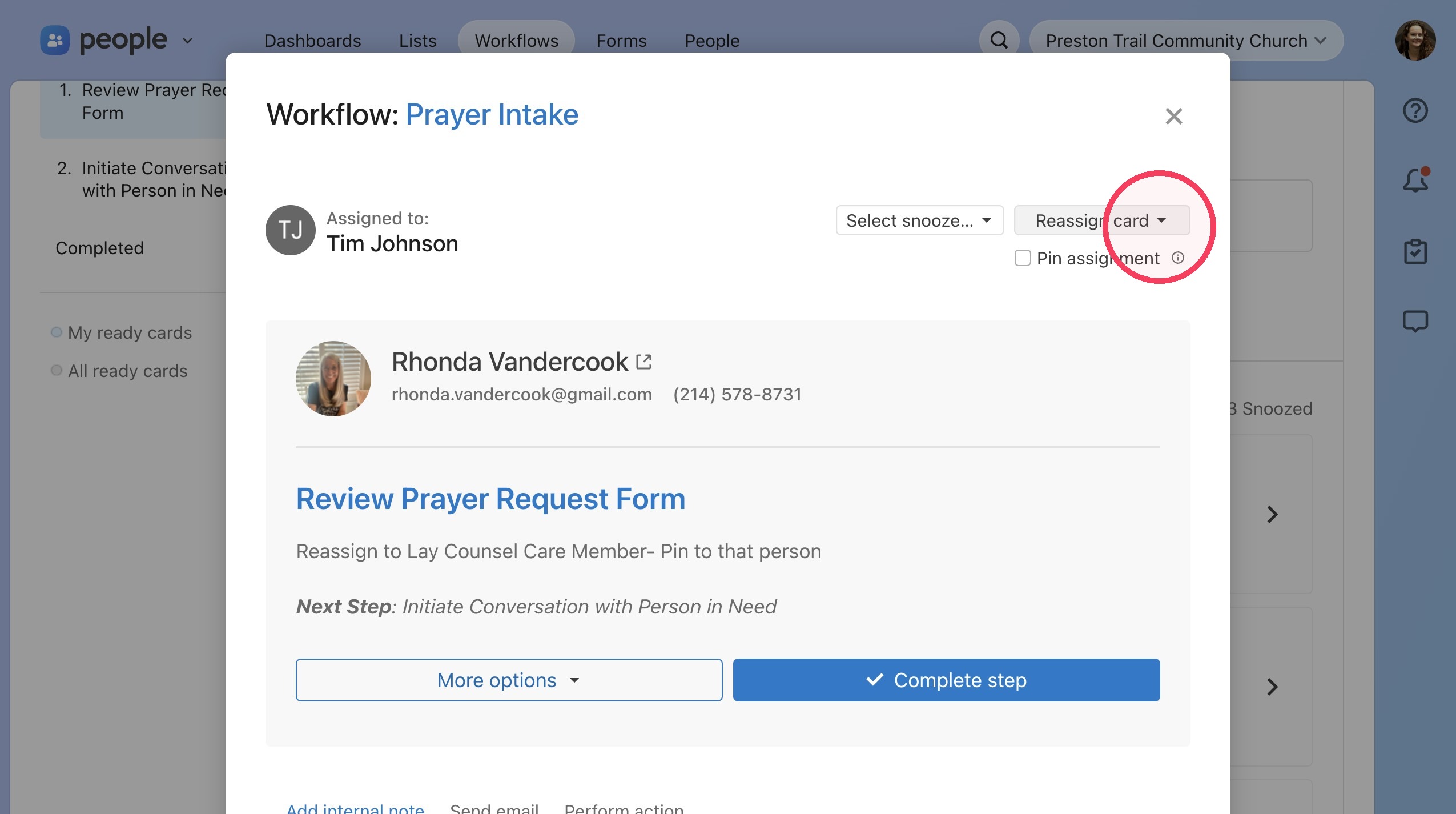
11. To reassign the card to another member of the prayer team, you can click "Reassign card" and type their name. If they have permissions for this workflow, their name will come up.
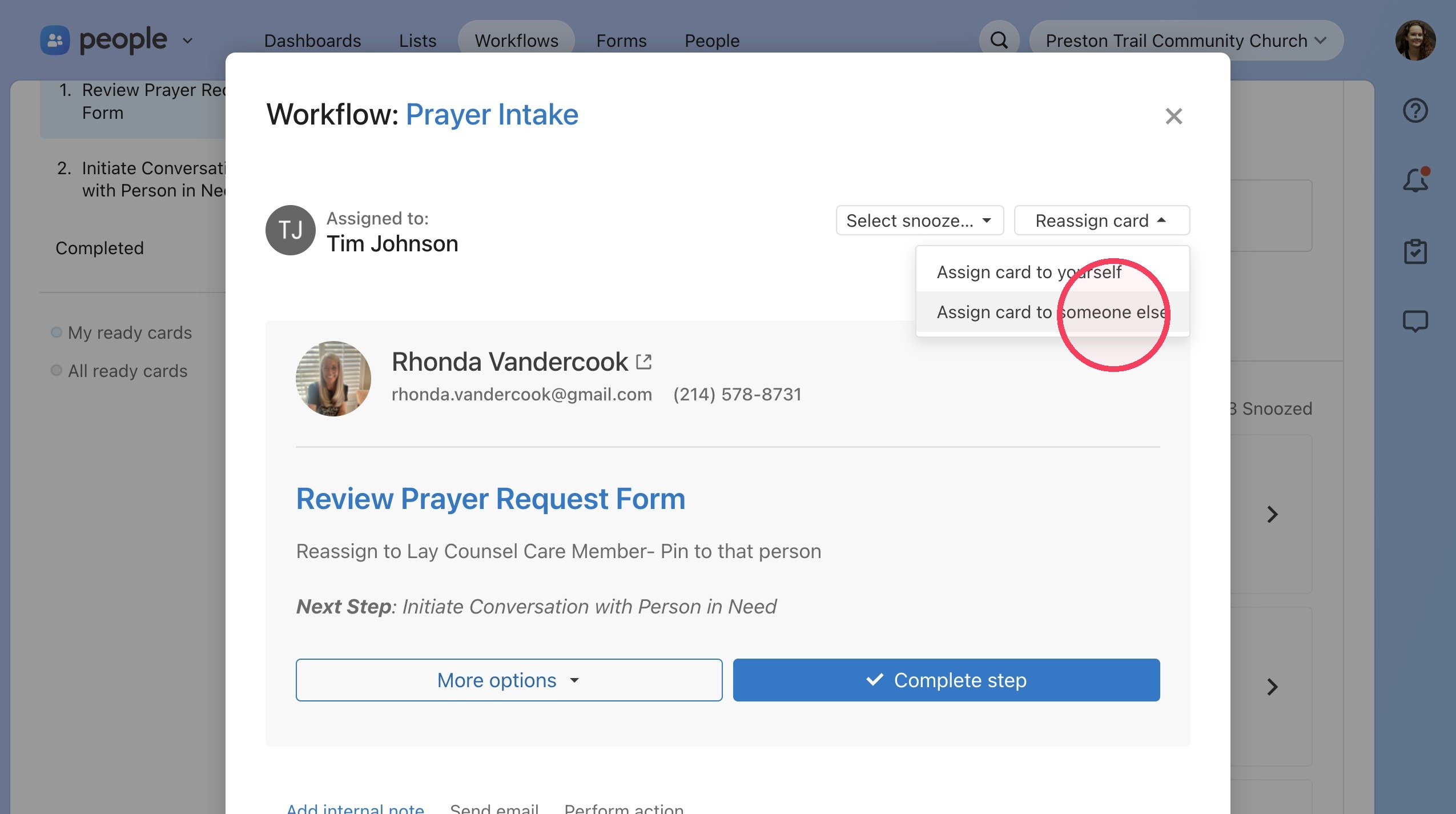
12. You can assign the card to yourself or someone else.
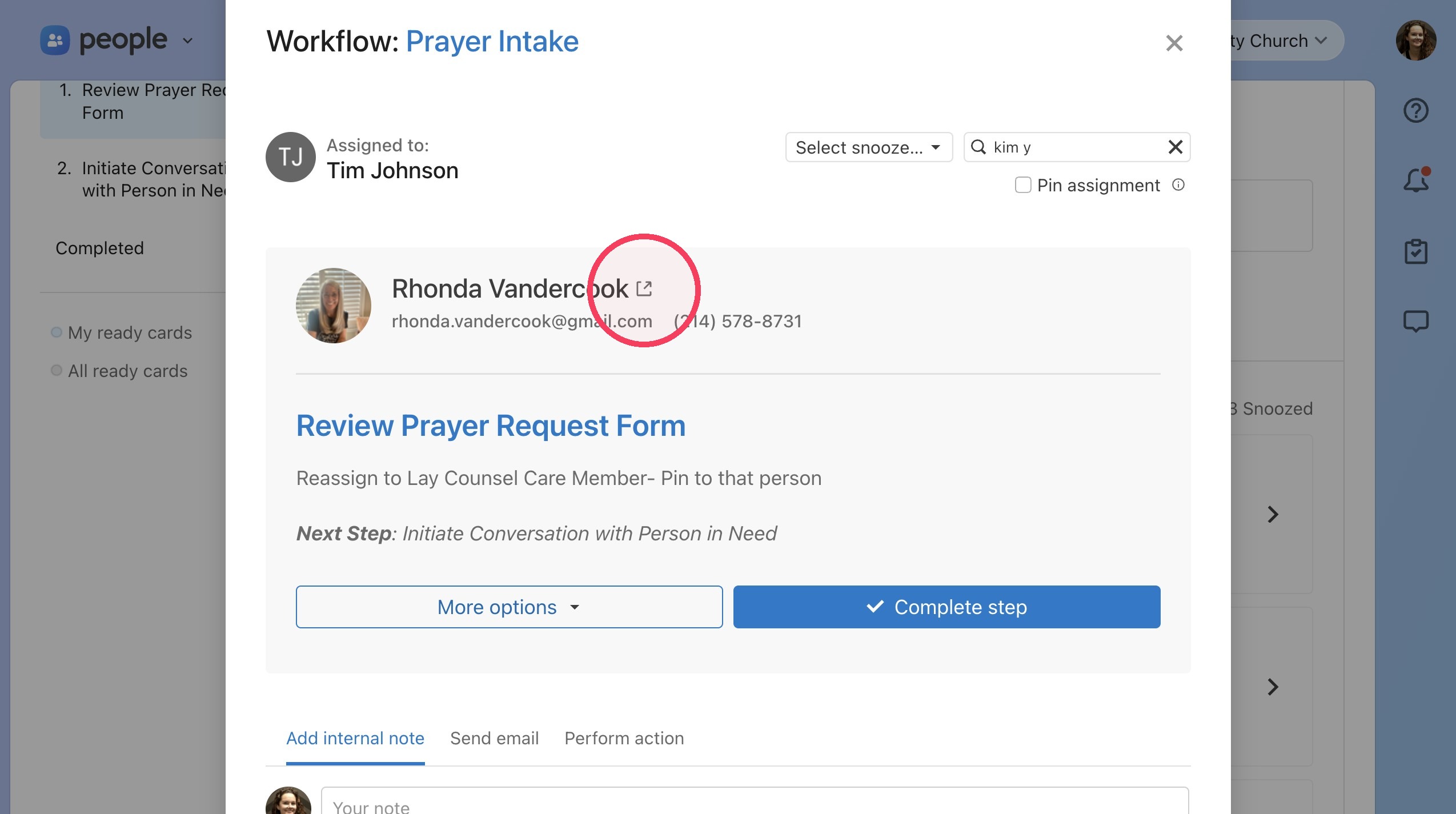
13. To view the persons PCO profile, click this icon.
14. Once you have completed the step, click "Complete step" to move the card to the next step.
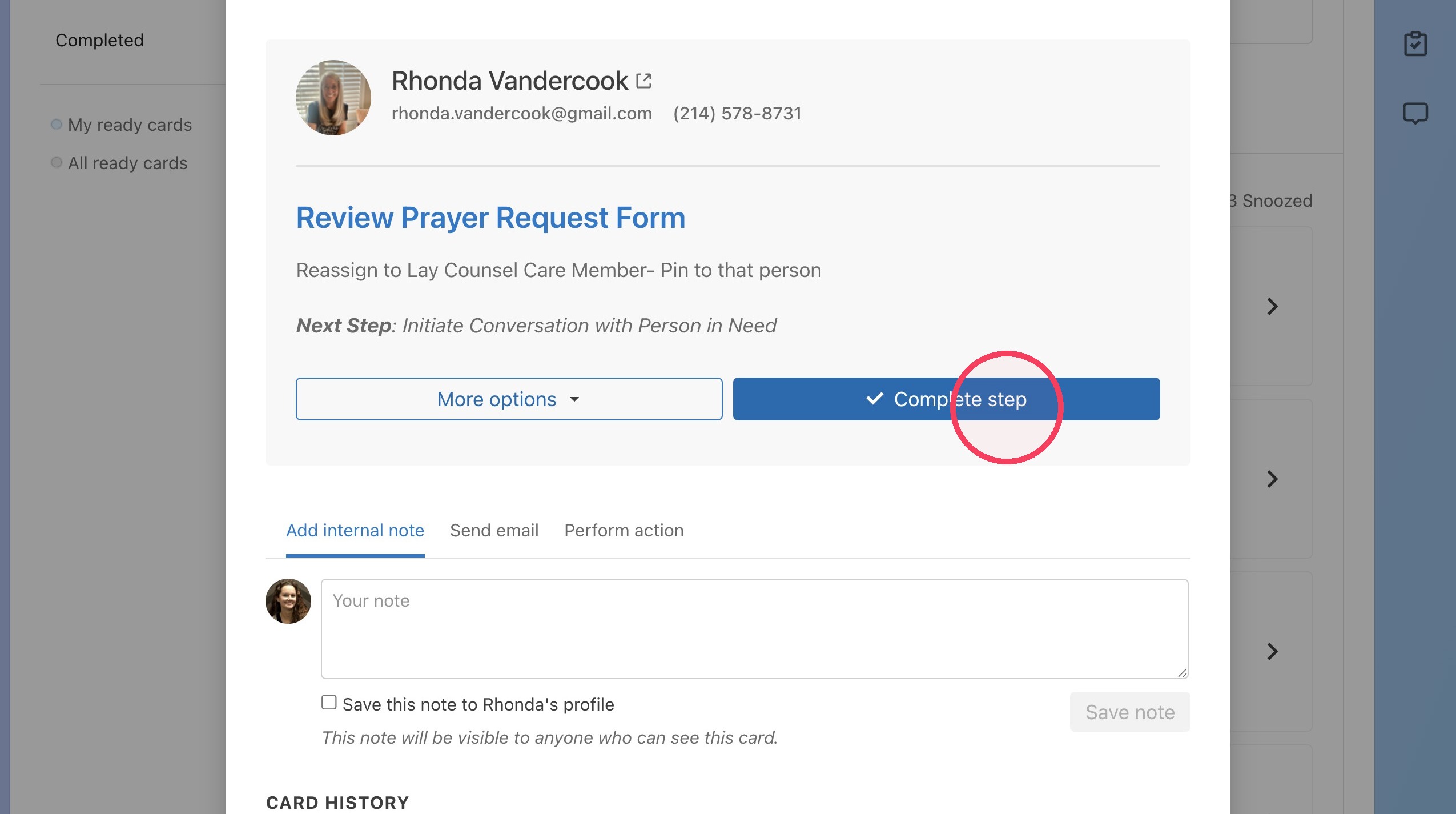
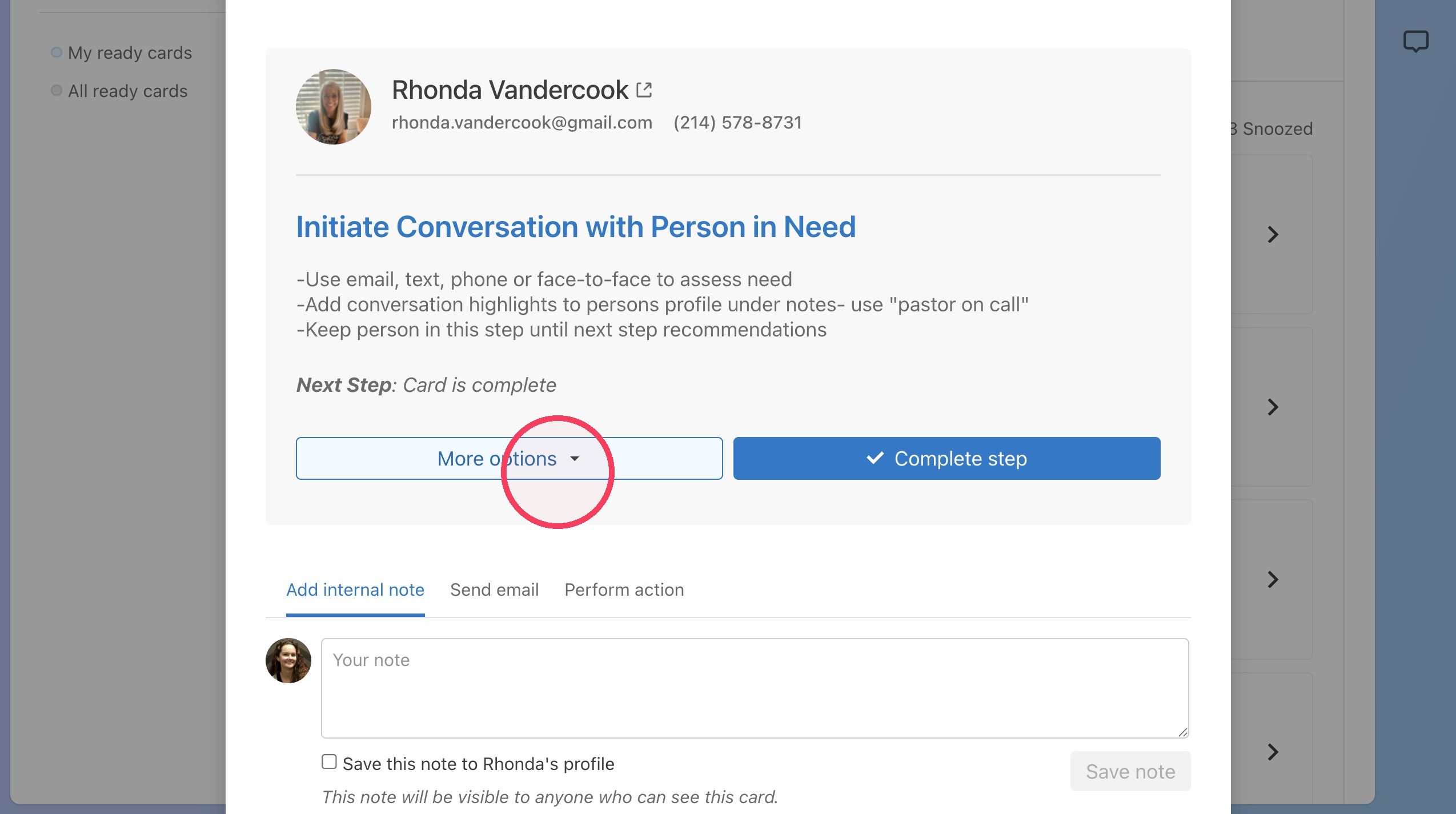
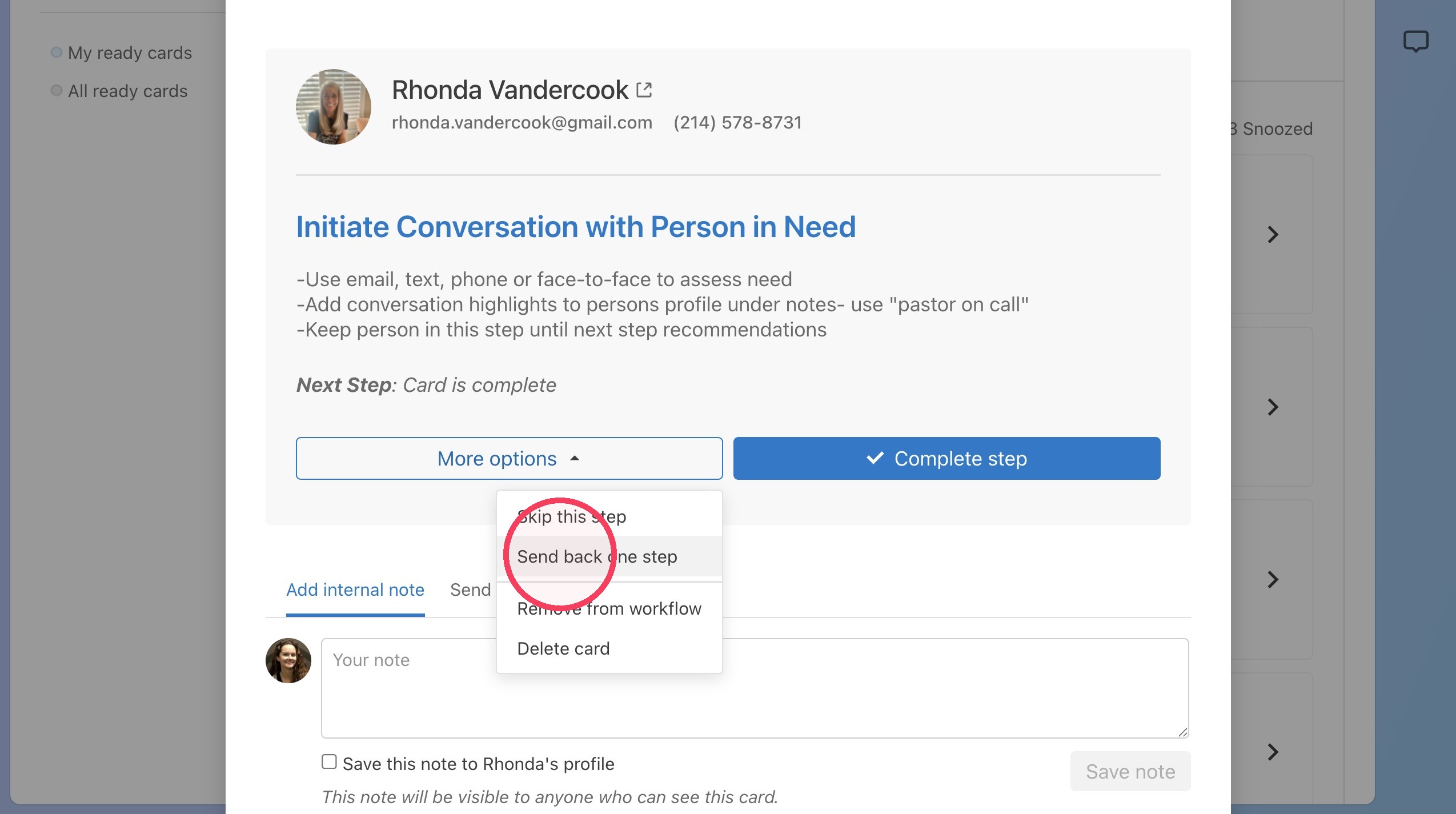
15. If you accidentally move to the next step and need to move back, click "More options"
16. These are the options available under "more options"
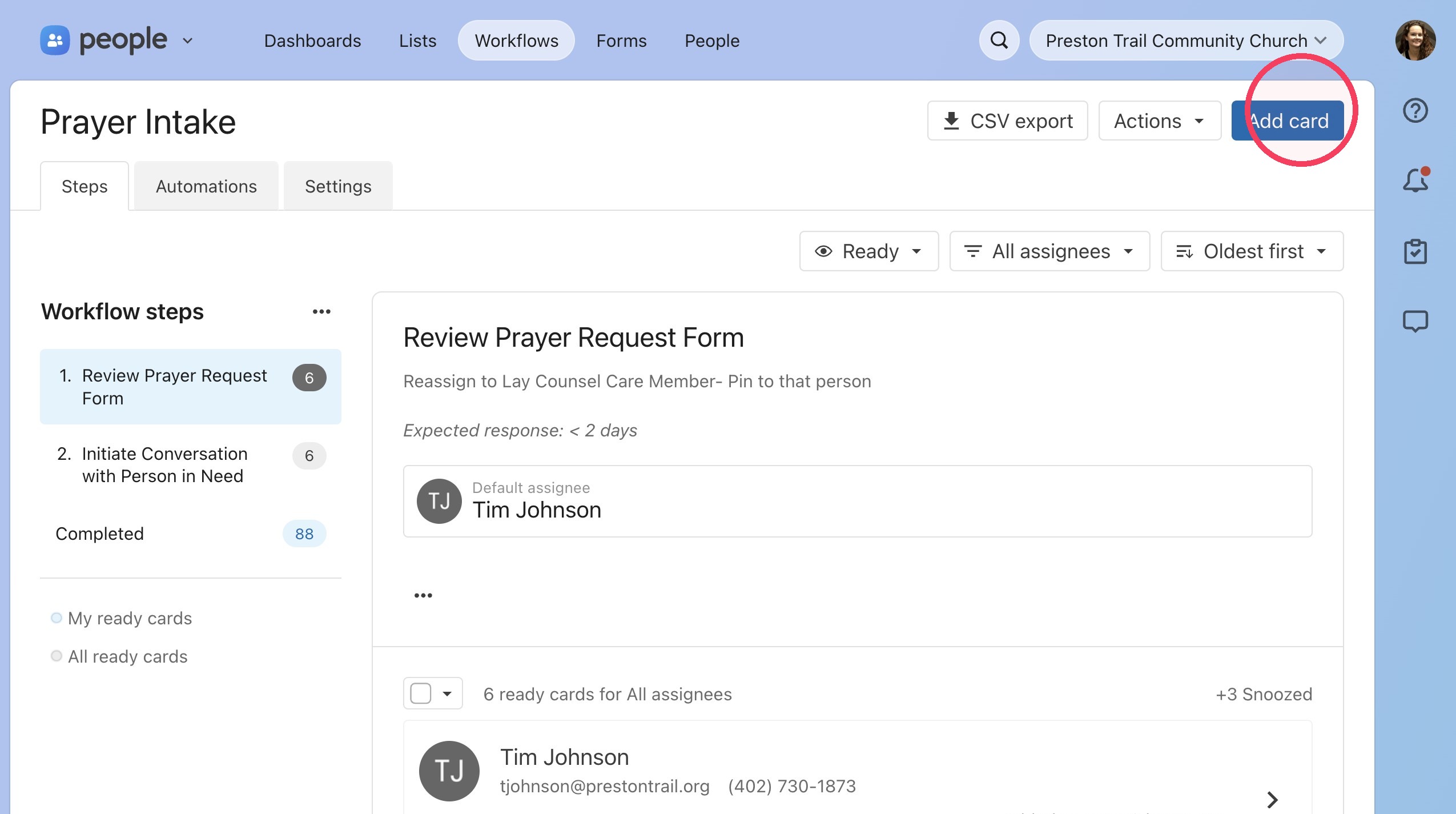
Adding a new workflow card
17. To add a card directly without submitting a form, click "Add card"
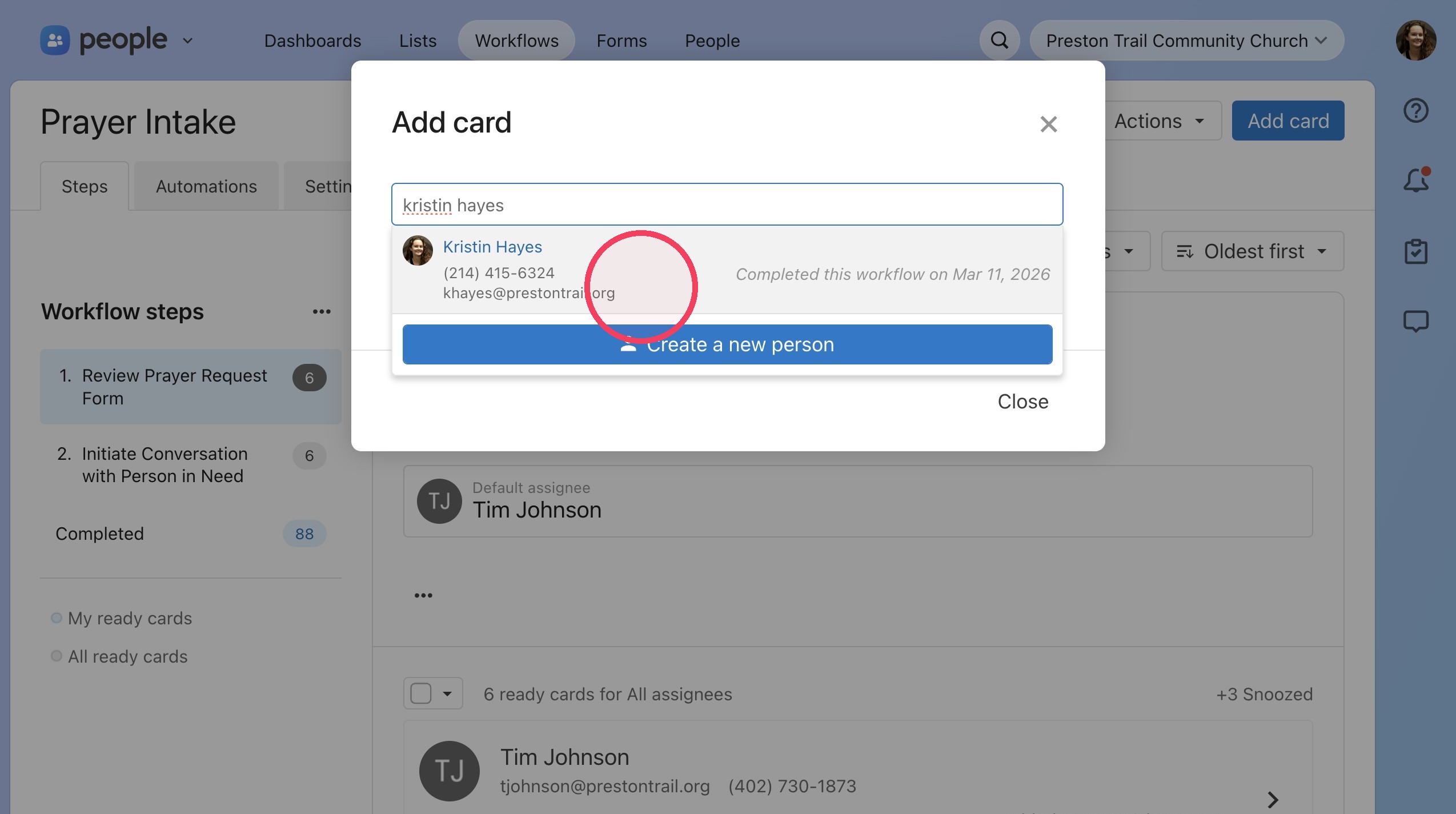
18. Type the name of the person you would like to add a card for. If they do not come up, please contact Kristin Hayes ([email protected]) to have them added. If you do not have a name and email for the person requesting prayer, use "Prayer At The Cross" profile
19. Click the person's name to add them.
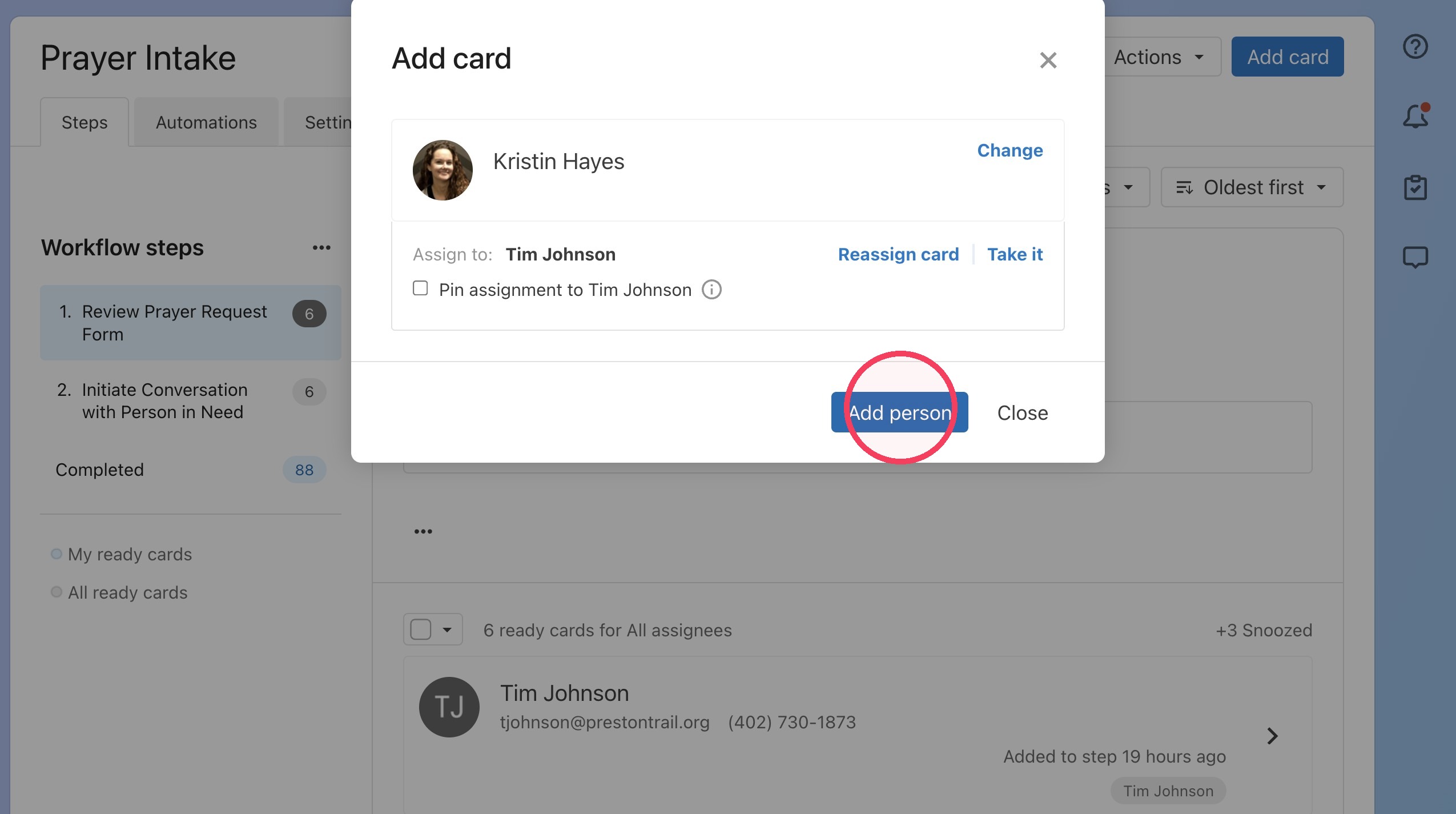
20. Click "Add person" and move through the workflow as outlined.
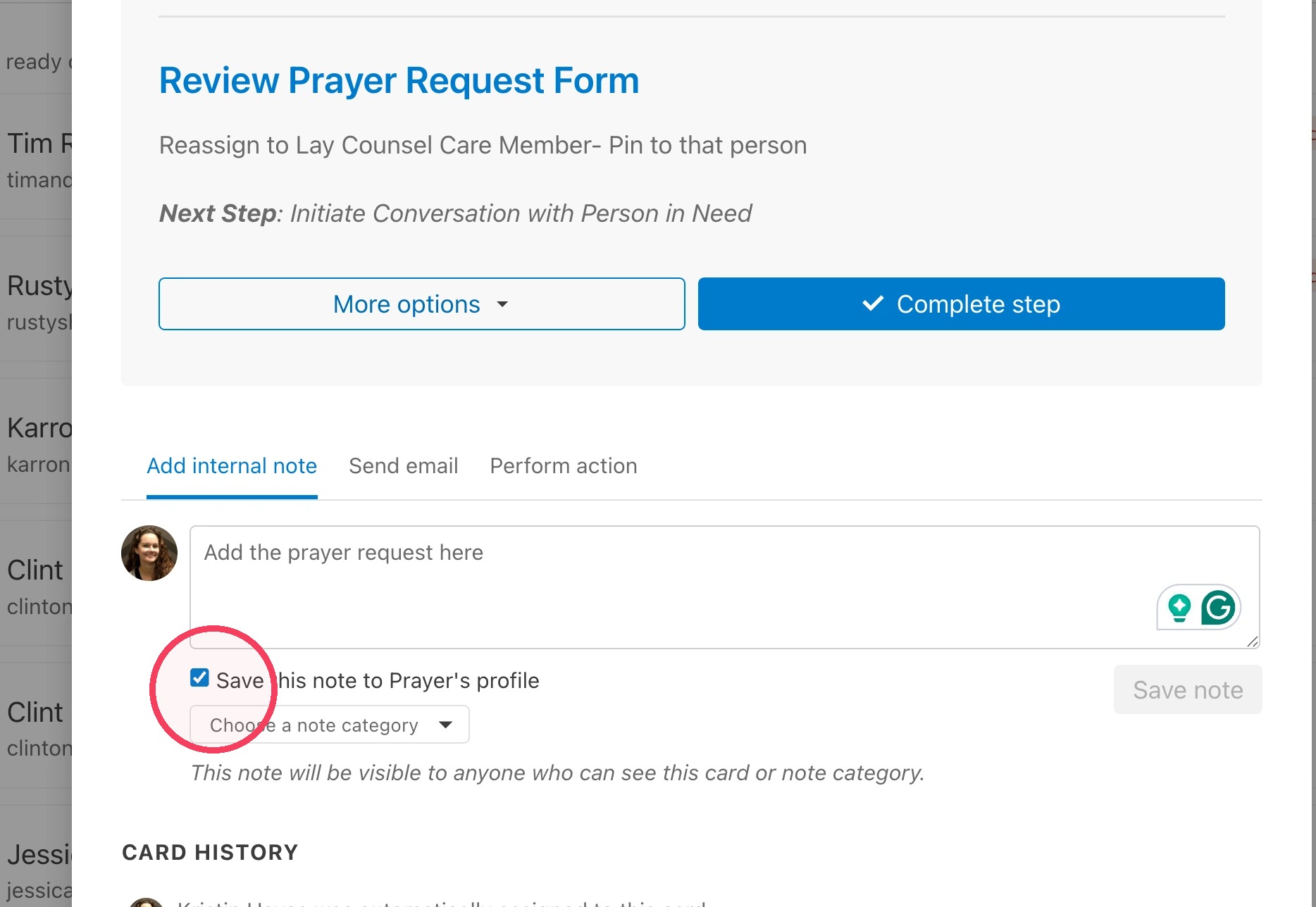
21. To add the prayer request, type it in the notes section and check "Save this note to {Person's} Profile"
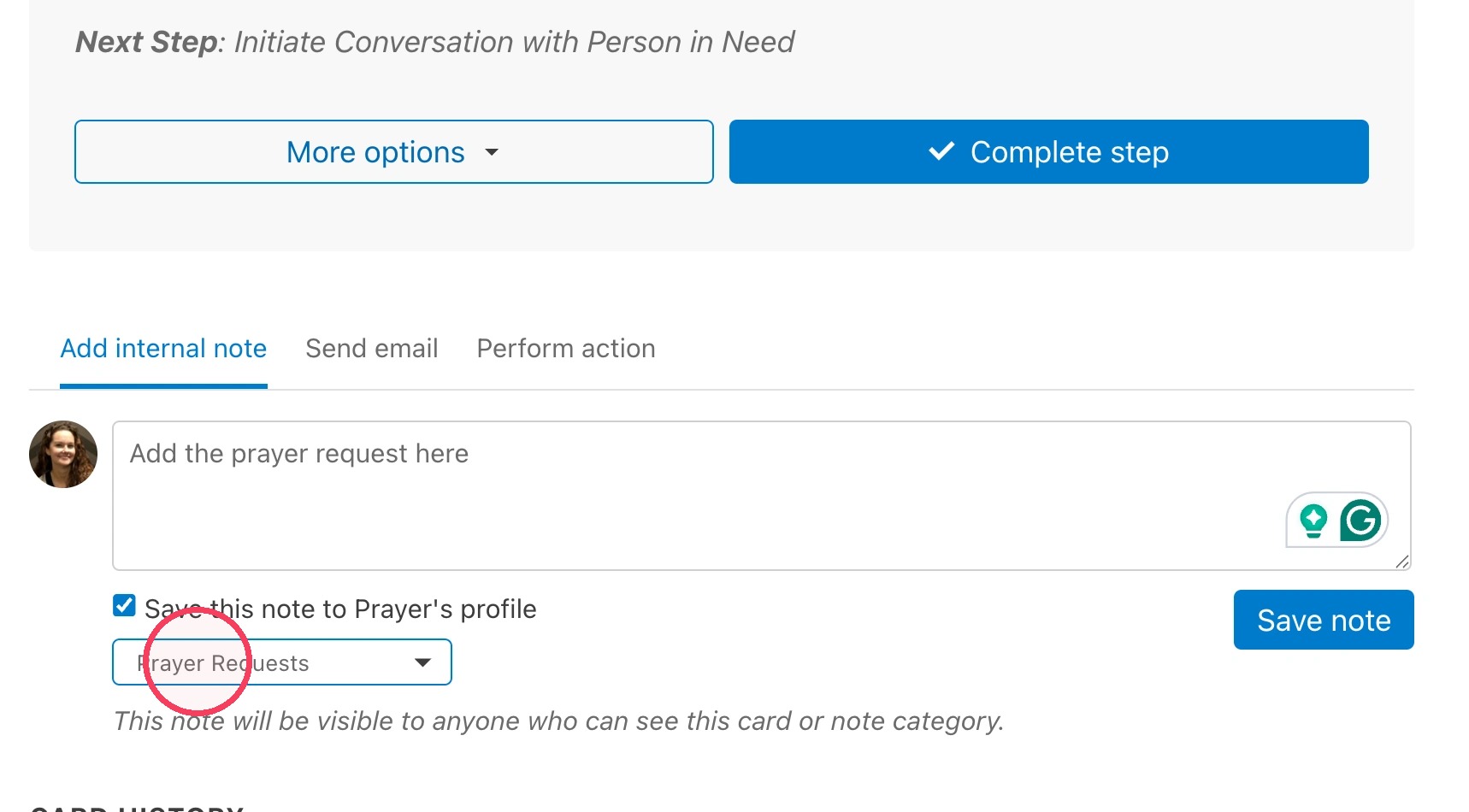
22. Click on "Choose a note category" and select "Prayer Requests" and then save the note.
Tip: If you have additional questions or would like additional help, please reach out to Kristin Hayes ([email protected])